
Summarize
Explore with AI
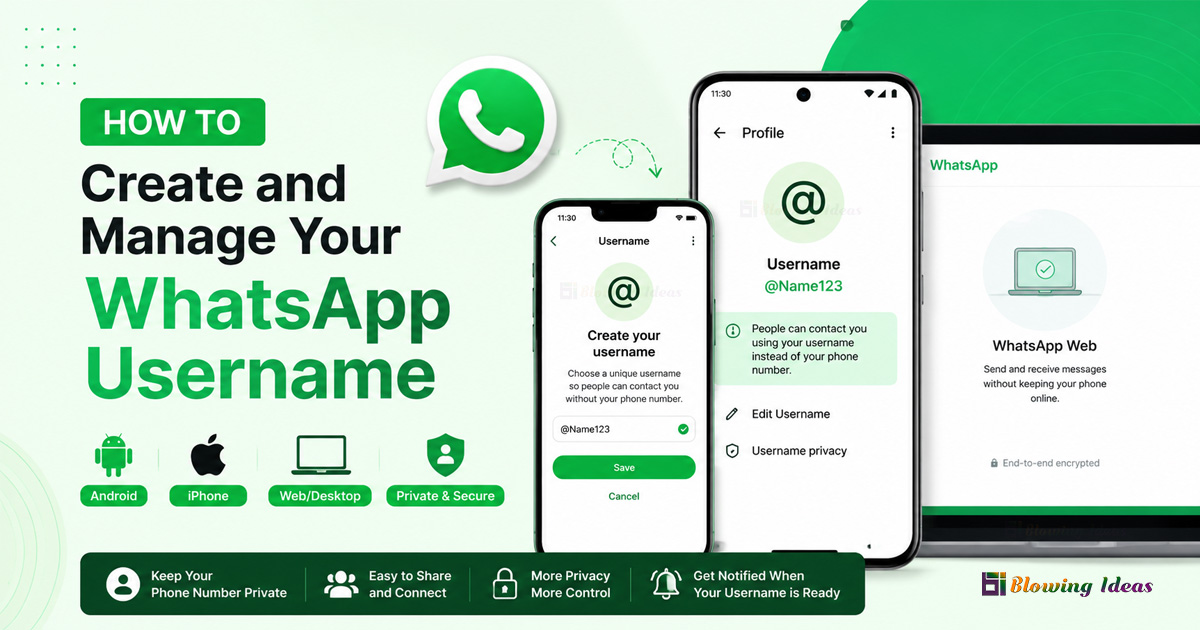
How to Create and Manage Your WhatsApp Username? Another addition by WhatsApp is that you can add usernames so that you do not need to give away your phone numbers anymore. Instead of providing someone with your mobile number, you could provide them with a username such as @BlowingIdeas. In this way, you could enjoy some privacy while also enabling other people to reach out to you easily.
This feature has not been activated for all users yet because the company is implementing it step by step. You should make sure that you have the latest version installed before you can access this function in your region.
Here is everything you need to know about creating, saving, changing, and deleting your WhatsApp username from Android, iPhone, WhatsApp Web, and Desktop devices.
What is a WhatsApp Username?
A WhatsApp username is a unique username that begins with the @ sign. Once you set your username, people can add you by your username rather than your phone number.
Your contacts whom you added on WhatsApp and who know your phone number will continue seeing your number.
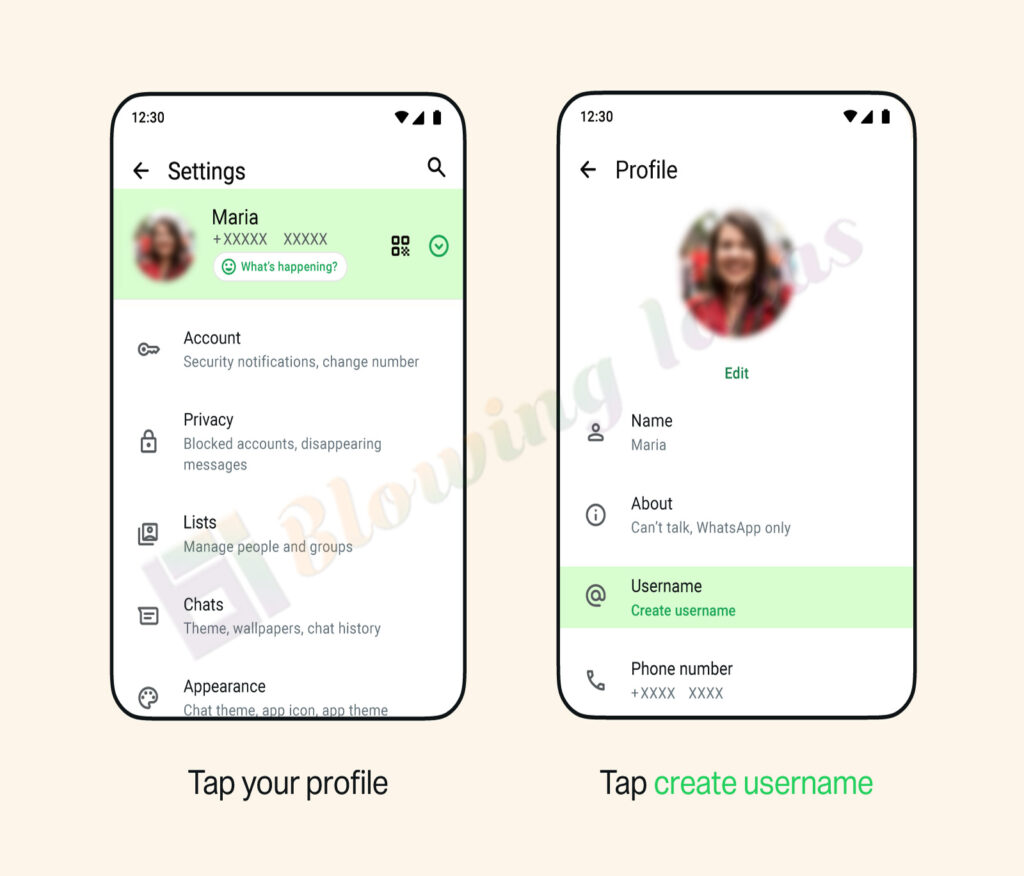
How to Create a WhatsApp Username on Android?
In case the usernames feature is accessible on your device:
- Launch WhatsApp.
- Click the menu icon in the upper right-hand corner.
- Select Settings.
- Tap on your profile name or picture.
- Tap Create Username.
- Write the username of your choice.
- In case your chosen username is available, you will be notified about it.
- In case it is not available, you should choose any of the suggested usernames.
- Tap Save, and then click on Done.
What to Do If the Feature Is Not Available to You?
In case usernames are not rolled out in your area yet:
- Launch WhatsApp > Settings.
- Tap on your profile.
- Tap Reserve Username.
- Type the username that you would like to reserve.
- Tap Create Username.
You will be notified when your reserved username is ready to be used.
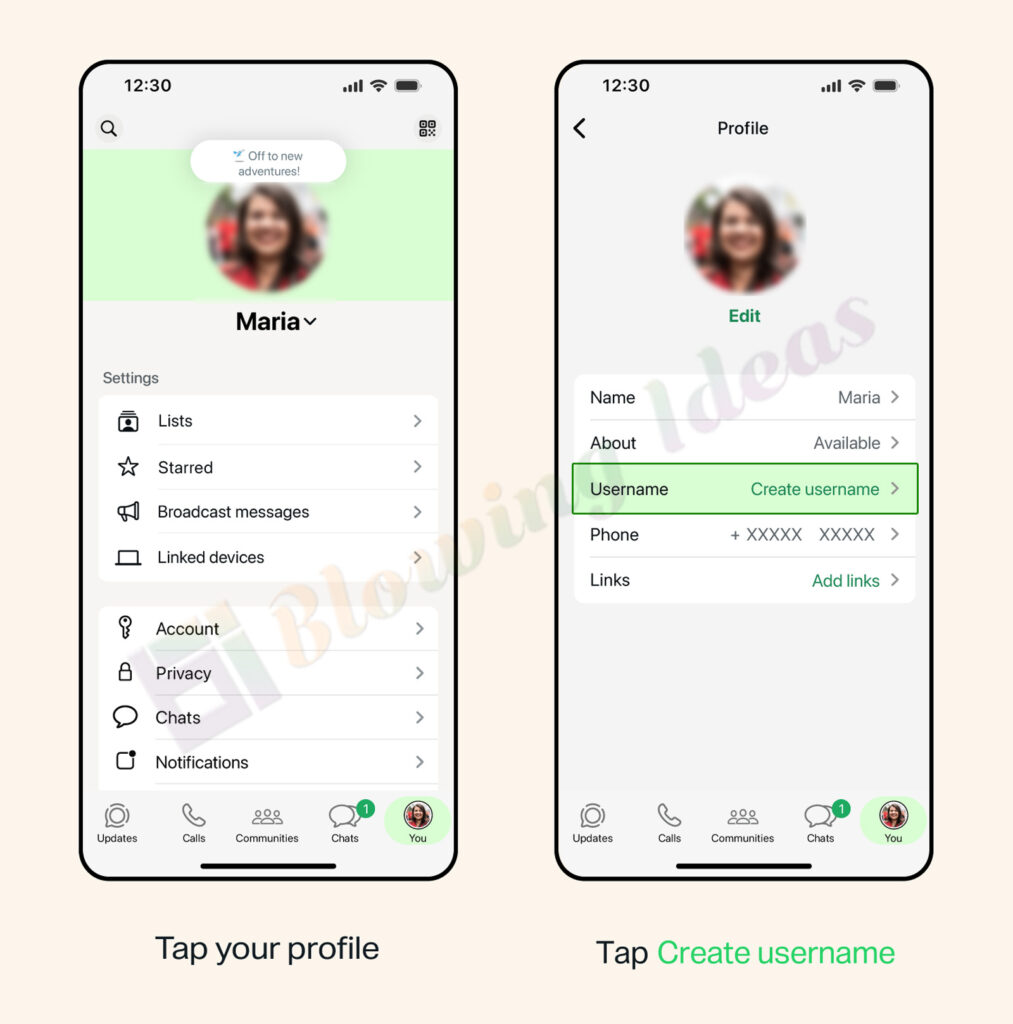
How to Create a WhatsApp Username on an iPhone?
The procedure is almost the same on the iPhone.
- Open WhatsApp.
- Go to Settings.
- Select your profile.
- Select Create Username.
- Select your desired username.
- If the username is available, select Save.
- Select Done.
Reserving a Username on iPhone
If usernames have not been released in your account:
- Open WhatsApp.
- Go to Settings.
- Select your profile.
- Select Reserve Username.
- Select your desired username.
- Create Username.
As soon as usernames become available in your region, the username you have reserved becomes activated.
Also Read: How to lock WhatsApp on iPhone with Face ID or Passcode?
How to Claim Your Instagram or Facebook Username?
Instead of coming up with a new username, you could claim the username you have been using on Instagram or Facebook.
Android
- Launch WhatsApp.
- Press Settings.
- Go to your Profile.
- Press Create Username.
- Press Use Instagram Username or Use Facebook Username.
- Finish the Accounts Center setup process.
iPhone
- Launch WhatsApp.
- Press Settings.
- Go to your Profile.
- Press Create Username.
- Choose Use Instagram Username or Use Facebook Username.
- Finish the Accounts Center setup.
Note:
- Adding WhatsApp to the Accounts Center is an optional step.
- You can at any time remove WhatsApp from the Accounts Center.
- In case the same username has been used by different individuals on Facebook and Instagram, the first one to claim that username will get it.
- Your WhatsApp username won’t be changed in case you change your Instagram or Facebook username.
How to Change Your WhatsApp Username?
Android
- Open WhatsApp.
- Tap Settings.
- Tap your profile.
- Tap Username.
- Tap Edit.
- Tap Change Username.
- Type in your new username.
- Tap Save.
- Tap Continue.
iPhone
- Open WhatsApp.
- Tap Settings.
- Tap your profile.
- Tap Username.
- Tap Edit.
- Tap Change Username.
- Type in your new username.
- Tap Save.
- Tap Continue.
Remember: There is a limit to the number of times you can change your username on WhatsApp. Once changed, your old username will be available to others.
How to Remove Your WhatsApp Username?
Android
- Launch WhatsApp.
- Tap on Settings.
- Click on Profile.
- Tap on Username.
- Tap on Edit.
- Click on Delete Username.
- Confirm by tapping Delete.
iPhone
- Launch WhatsApp.
- Tap on Settings.
- Tap on Profile.
- Tap on Username.
- Tap on Edit.
- Tap on Delete Username.
- Confirm deletion.
Once you remove your username, you get 14 days to take back your username before it gets released for other users.
How to Create and Manage a WhatsApp Username on Web & Desktop?
Currently, WhatsApp Web and Desktop applications do not allow creating, reserving, changing, or deleting any user name.
To be able to manage your user name, you should use your main Android or iPhone.
WhatsApp Web and Desktop applications will allow you to communicate and share files, but managing user names is only possible through the mobile app.
Also Read: How to send View Once voice messages on WhatsApp?
WhatsApp Username Rules
Your username must:
- Be between 3 and 35 characters long.
- Include only lowercase letters (a-z), numbers (0-9), underscores (_), and periods (.).
- Not consist only of numbers.
- Be unique.
- Not contain restricted words or phrases.
Things to Note
- Using usernames is not mandatory.
- Your phone number stays confidential from those who do not already have it.
- Users who already have your phone number will keep seeing it.
- Certain usernames are restricted to businesses, governments, and celebrities.
- When your desired username is unavailable, WhatsApp will suggest other options.
- Currently, changing your username is possible only when switching your phone number within the same device.
FAQ
Q.1: Why can’t I make a username for WhatsApp?
Ans: It is introduced slowly. Upgrade to the newest version and wait for it to become available for your profile.
Q.2: Is it possible to book a username?
Ans: Yes. If you do not have access to that option yet, then it might be possible for you to book a desired username on your smartphone.
Q.3: Is it possible to edit my username via WhatsApp web?
Ans: Not at the moment. It is possible to create, book, change, and delete a username only through Android and iOS devices.
Q.4: Can I change my username later?
Ans: Yes. You can change your username even though there is a limit to the frequency of doing so.
Q.5: Does a username keep my phone number private?
Ans: Yes. Those users who do not have your phone number will be able to contact you using your username, while your existing contacts will continue to see your phone number.
Final Words
Using usernames on WhatsApp helps you connect without disclosing your phone number. Regardless of whether you have an Android or an iPhone, the process of setting up your username is very simple. You can even hold back your desired username until its availability on your account.
For the time being, keep in mind that there are no username options on WhatsApp Web/Desktop versions. All settings associated with usernames can only be configured through your main mobile app.
Also Read: How to Read Voice Messages on WhatsApp?
