
Summarize
Explore with AI
Privacy concerns are rising as people use their phones in public spaces. Samsung’s Privacy Display on the Galaxy S26 Ultra is designed to prevent shoulder-surfing by restricting side-angle visibility of your screen. This definitive guide explains how to enable and disable Privacy Display using Settings and the notification bar (Quick Settings), what each option does, and how to optimize it for daily use.
What Is Privacy Display and How Does It Work?
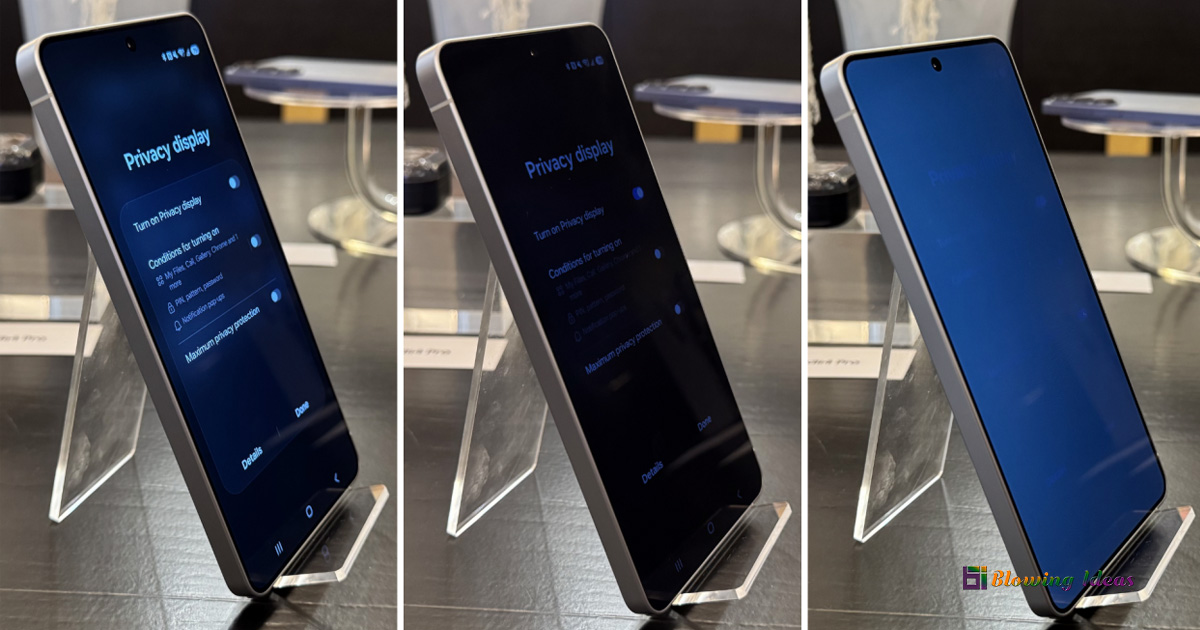
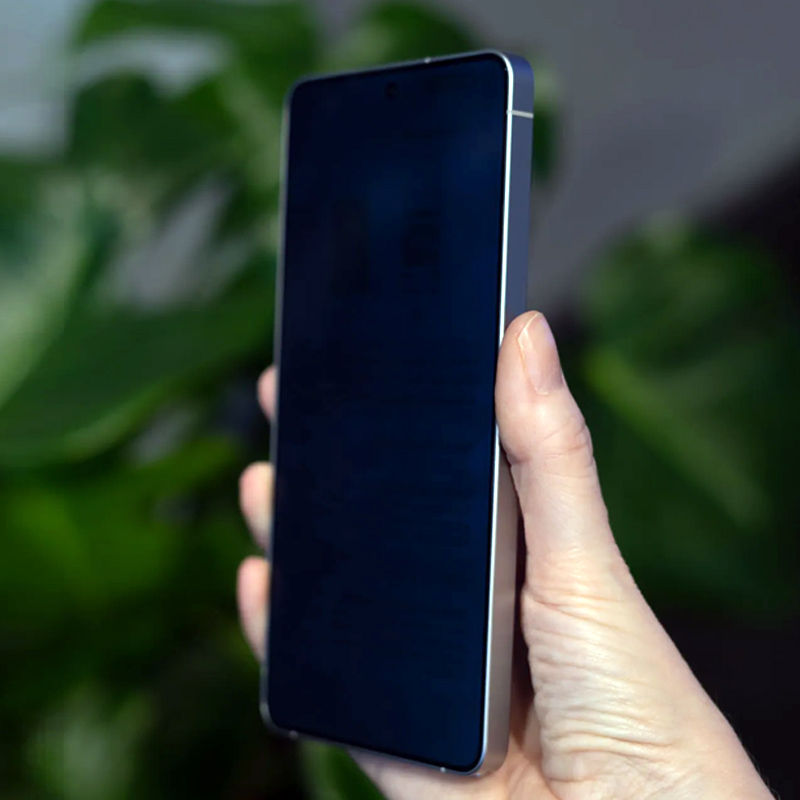
Privacy Display is a built-in display-level privacy filter that narrows viewing angles. Content remains clear when viewed head-on, while side views appear darkened or obscured. Unlike physical privacy screen protectors, this feature can be toggled on or off instantly from software.
Core benefits:
- Prevents shoulder-surfing in public places
- No accessory required
- One-tap control via Quick Settings
- Optional stronger protection mode
Enable or Disable Privacy Display (From Settings)
Steps
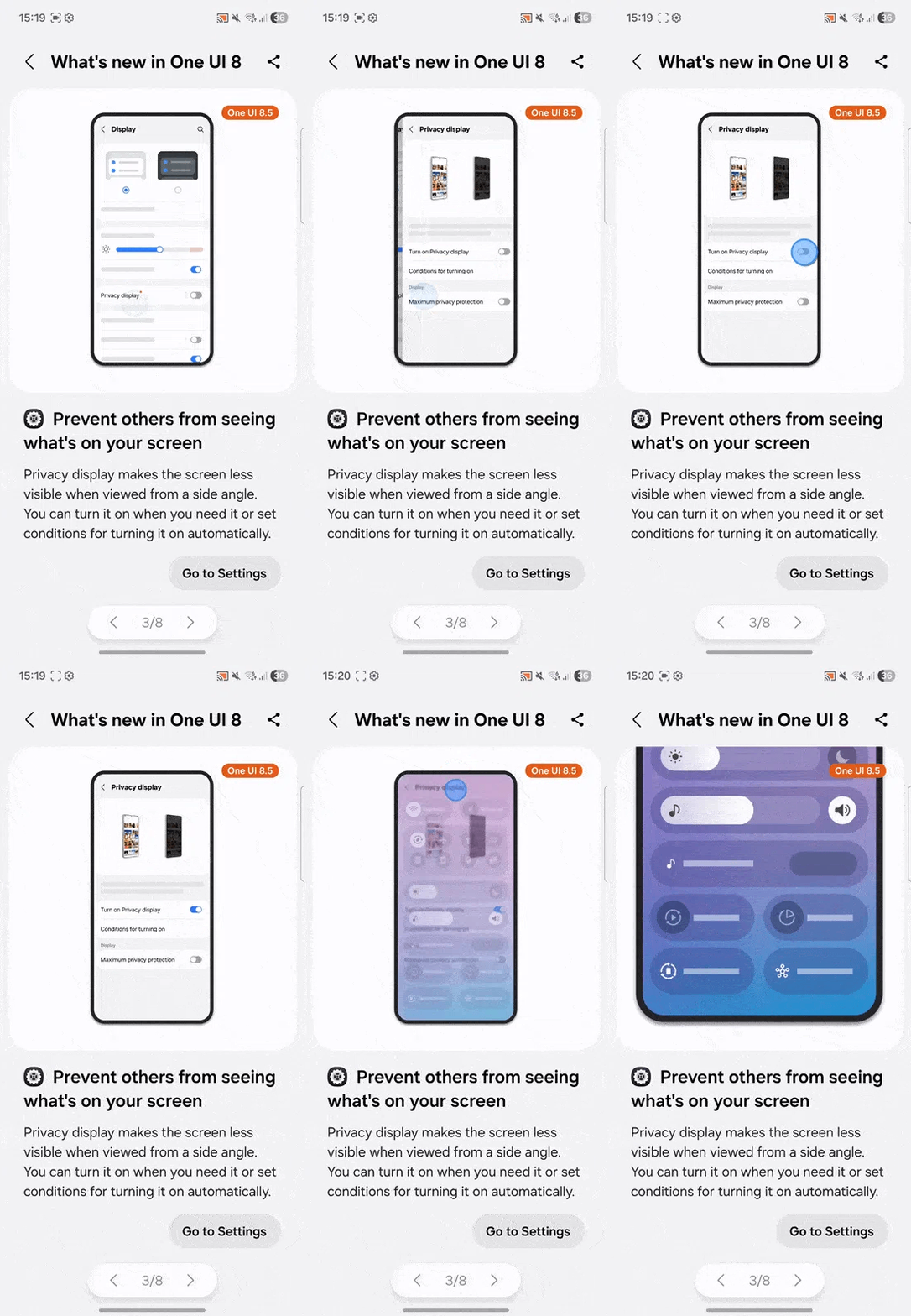
- Open Settings
- Go to Display
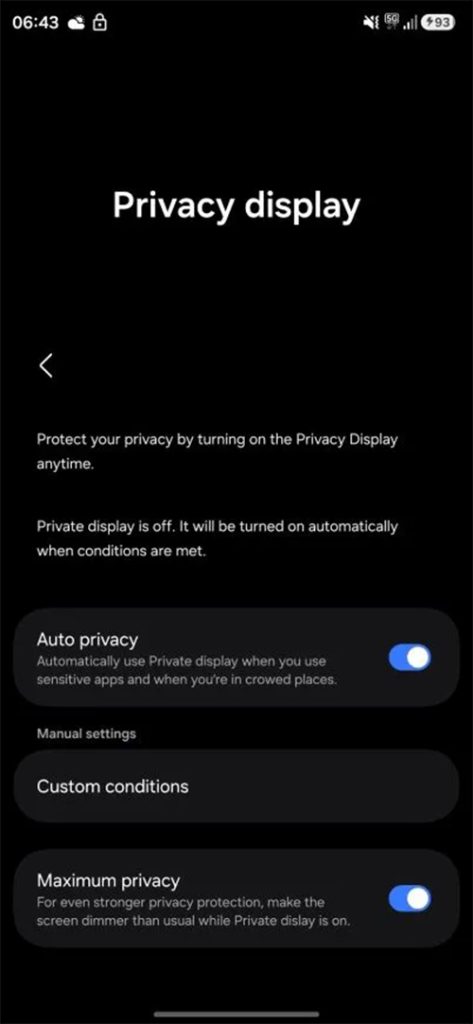
- Turn Privacy display → ON
- (Optional) Turn Maximum privacy protection → ON for stronger shielding
- To disable, switch Privacy display → OFF
What each toggle does
- Privacy display: Activates side-angle privacy filtering.
- Maximum privacy protection: Applies a more aggressive privacy filter. Expect stronger side darkening and potentially lower perceived brightness at off-center angles.
Enable or Disable Privacy Display (From Notification Bar / Quick Settings)

Steps
- Swipe down to open notifications
- Swipe down again to expand Quick Settings
- Tap the Privacy display tile to toggle ON/OFF
Add the tile (if missing)
- Open Quick Settings → Edit (✎)
- Drag Privacy display into your active tiles
Behavior note:
The Quick Settings tile mirrors Settings → Display → Privacy display. If Maximum privacy protection is enabled in Settings, turning the tile ON applies the stronger mode.
Best Use Cases (When to Turn It On)
- Public transport (bus, train, metro)
- Cafés and co-working spaces
- Airports and waiting areas
- Banking apps, OTPs, emails, documents
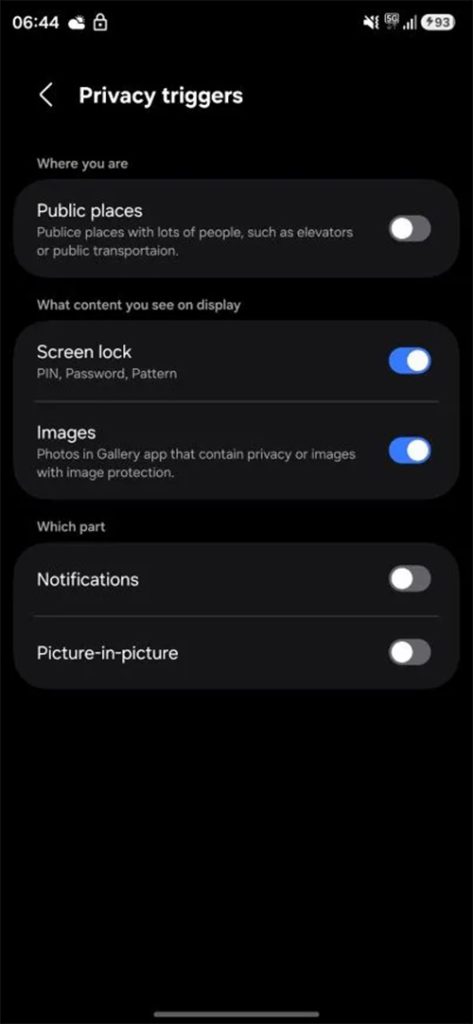
When to turn it off:
Watching videos with others, sharing your screen, or long indoor sessions where maximum brightness and off-axis readability are preferred.
Performance Impact (Brightness, Color, Battery)
- Brightness: Maximum mode can feel dimmer from angles; increase brightness if needed.
- Color accuracy: Normal head-on viewing; off-axis visibility is intentionally reduced.
- Battery: Minimal direct impact; higher brightness to compensate may slightly increase usage.
Built-in Privacy Display vs. Physical Privacy Screen Protectors
Why built-in is better
- Toggle on/off instantly
- No permanent dimming
- No installation or touch issues
- Cleaner visuals when privacy is off
| Feature | Built-in Privacy Screen | Physical Privacy Protector |
| Toggle on/off | Yes (instant) | No (always on) |
| Screen clarity | Normal when off | Always slightly dimmer |
| Installation | None | Requires fitting |
| Compatibility | Native to display | May affect touch/clarity |
| Flexibility | High | Low |
Avoid stacking:
Using a physical privacy protector on top of Privacy Display can overly darken the screen.
Also Read: How to Fix the “Screen Search Isn’t Available” Issue on Galaxy S25?
Troubleshooting
Privacy Display tile not visible
→ Quick Settings → Edit (✎) → add Privacy display
Screen too dim with Maximum mode
→ Disable Maximum privacy protection and keep standard Privacy Display/Screen
Side angles still visible
→ Enable Maximum privacy protection in Settings → Display
Frequently Asked Questions (FAQs)
Q.1: Does Privacy Display hide only notifications?
Ans: No. It affects the entire display’s viewing angles.
Q.2: Can I automate Privacy Display?
Ans: Use Quick Settings for instant toggling. Some One UI versions support routines for context-based control.
Q.3: Does it work with screen protectors?
Ans: Yes, but privacy protectors may compound dimming. Clear protectors are recommended.
Q.4: Is Privacy Display always on?
Ans: No. You can toggle it off anytime from Quick Settings or Settings.
Final Verdict
Privacy Display on the Galaxy S26 Ultra provides software-controlled privacy without compromising daily usability. Use Quick Settings for instant control and Maximum privacy protection only when you’re in crowded environments. This approach balances privacy, brightness, and comfort.
Also Read: How to Fix Samsung Galaxy S25 Edge Overheating Issue?

3 comments
Is the Privacy Display feature explained clearly enough to understand what it does?
Yes. I liked how the article explained the side-angle blocking in plain language. Thanks for making the feature easy to understand — appreciated!
thanks for sharing such a detailed article. It helps a lot to find the privacy settings.