
Summarize
Explore with AI
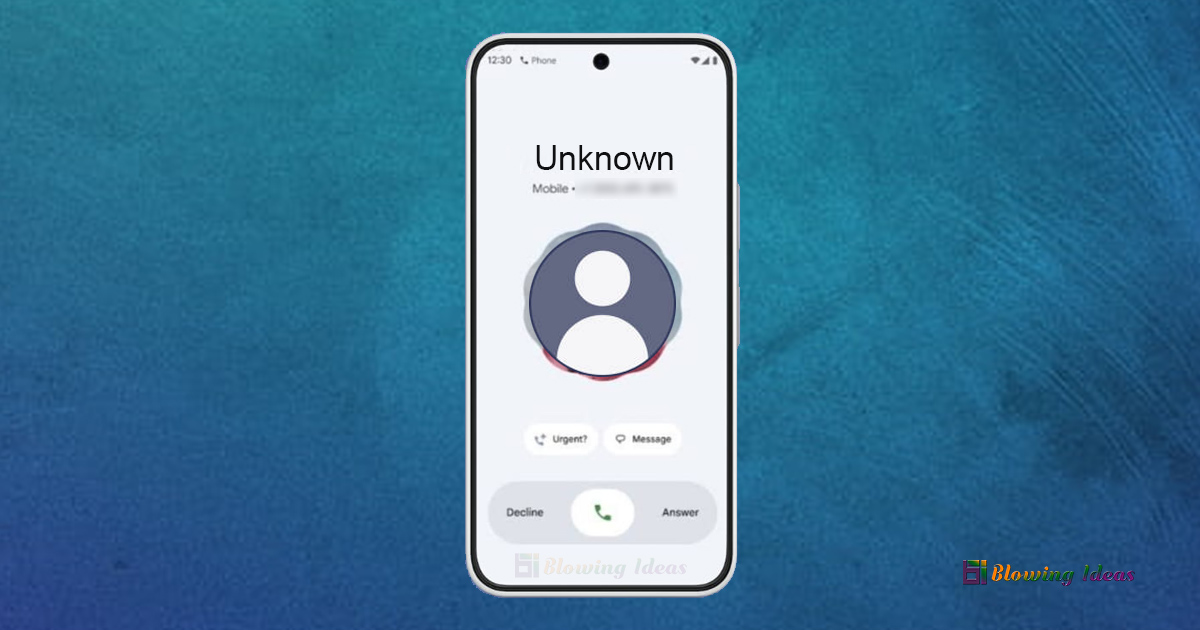
Google just updated the Google Phone app for Android smartphones, adding Material Design 3 magic, gestures, and a new user interface. Users, however, are not pleased with this abrupt change in user interface because it affects not just the dialler app’s interface but also how calls are answered. Parents and others who are not particularly tech-savvy may find this bothersome.
Memes and amusing posts instantly inundated social media. The reason for all this criticism is that the dialler no longer provides simple access to the contacts list; the new appearance interfered with muscle memory that had been developed over the years, causing unintentional hang-ups. Many people have to go through a learning curve, and it’s less intuitive.
You’re in luck if you and your parents have similar preferences and would like to see the previous user interface restored. Here’s a detailed tutorial on how to accomplish that on your smartphone. We will also provide a workaround to offer a better solution to this problem.
How to Roll Back Old Google Phone Dialer UI on Android?
You can go back to the previous user interface if your phone was recently updated to the most recent version of the dialler app.
1. On your smartphone, launch the Google Play Store app, hit the profile symbol in the upper right corner, and select Settings. Choose Auto-update apps after navigating to Network options. To stop the dialler app from updating on its own, select Don’t auto-update apps.

2. Now go to the Google Play Store and look for the Google Phone app. After selecting the program from the search results, choose Uninstall updates. This will restore the app to its original factory version with its previous user interface.

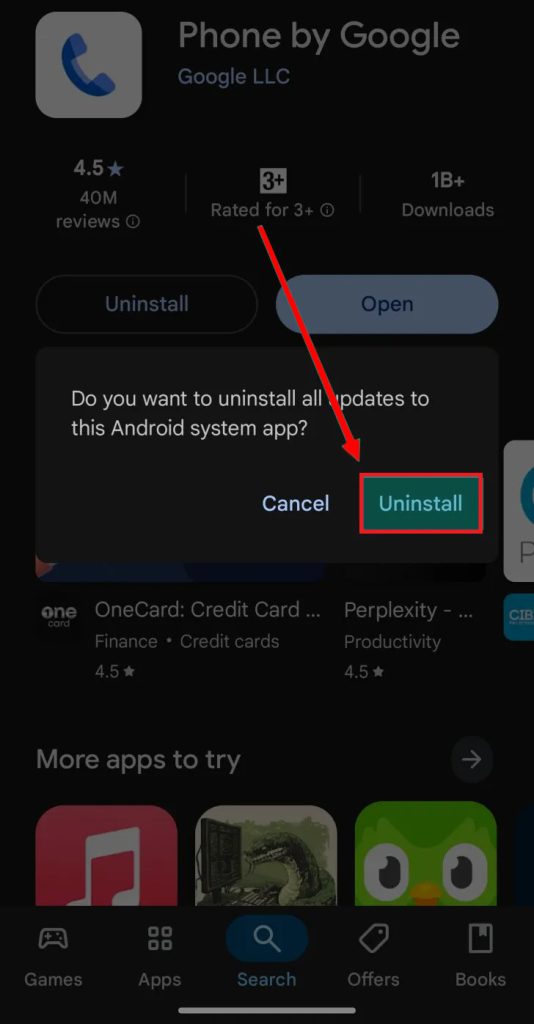
3. Navigate to Settings > Apps > Phone on your phone before launching the Phone app. To clear the cache and data, tap on Storage.
4. You may again use the classic dialler with its recognisable user interface and gestures.
Setting a backup dialler app from the OEM as your default phone app is an additional workaround if your smartphone has one. Since you won’t need to turn off auto-updates, which is normally not advised, this will be a better choice.
Also Read: How to Use WhatsApp Screen Share Feature?
