
Summarize
Explore with AI
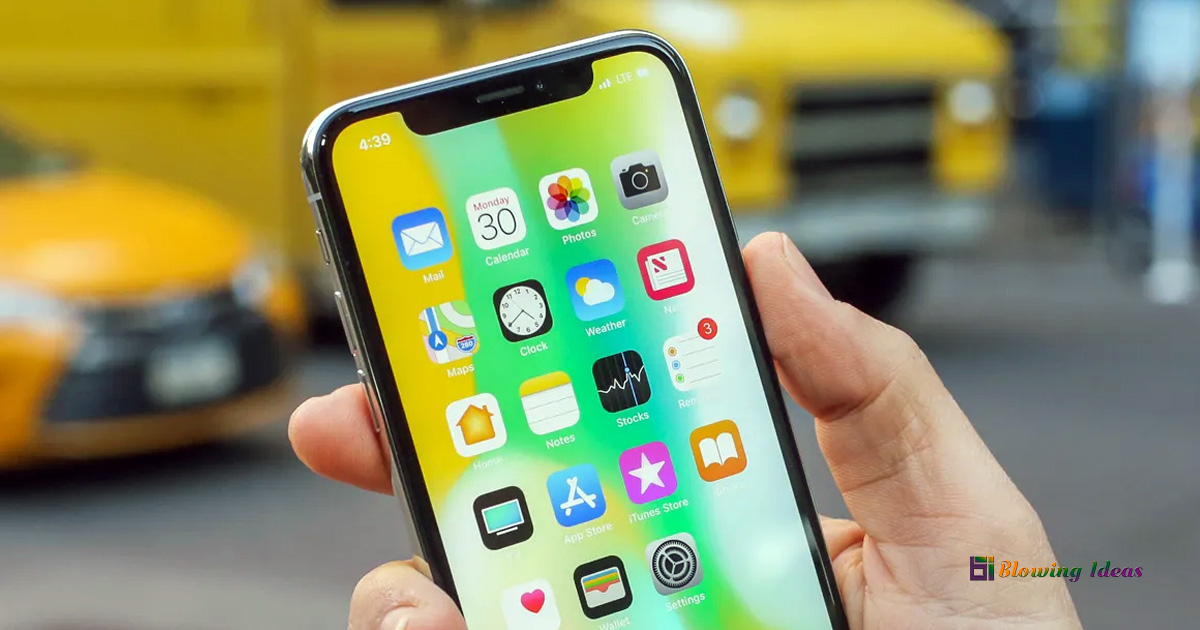
How to fix Ghost Touch on iPhone X? If your iPhone has a mind of its own, with icons moving across your home screen or apps closing unexpectedly, you’ve most likely been impacted by the so-called “ghost touch,” named after the way your iPhone behaves strangely without your direction.
Good news: your iPhone is not haunted. Numerous difficulties can cause ghost touch on your iPhone, particularly if you’re using one of the more vulnerable devices, the iPhone X, XR, XS Max or the iPhone 11, 12, 13, 14, 15, and iPhone 16 Series.
This troubleshooting tutorial will assist you in determining what is causing your iPhone to malfunction and how to fix the ghost touch on your iPhone so that you can regain control of your touch screen.
How to fix Ghost Touch on iPhone X?
Let’s start with the simplest and quickest solutions for ghost touch on your iPhone, then move on to more subtle difficulties that your phone may have and how to resolve them.
Method #1. Reboot your iPhone
You’d be shocked how many iPhone issues may be resolved with a simple reset. If you have turned off all of your accessibility options, the next step is to power down and restart your iPhone. Here’s a refresher if you haven’t done this before:
- If you have an iPhone X or newer, press and hold both the volume and power buttons simultaneously until the power off slider displays.
- If you possess an older model, hold down the power button until the power off slider displays.
- Drag your finger across the slider until the screen becomes black.
- Wait 30 seconds, then press and hold the power button until the Apple logo appears on your screen.
Method #2. Avoid utilising third-party chargers
Trust it or not, many chargers that have not been Apple-certified can create a variety of problems for your iPhone. The most typical problem caused by using an off-brand charger is battery drain, although there have also been complaints of ghost touch issues.
If you’re only getting ghost touch when your phone is plugged into a charger, that’s most likely the cause. Replace your charger with an Apple-certified one and you’ll be set to go.
Method #3. Examine your iPhone’s accessibility settings
iPhone features such as Assistive Touch and Touch Accommodations were created to make it easier for persons with disabilities to use the iPhone’s touch functions. When these functions are enabled, it may appear like your iPhone has a mind of its own, but it is simply carrying out its intended function. Here’s how to check the Accessibility settings on your iPhone:
- Go to Settings on your iPhone.
- Tap ‘Touch.’
- Make sure to turn off ‘AssistiveTouch,’ ‘Touch Accommodations,’ and ‘Back Tap.’
- Tap ‘Haptic Touch’ to change how long it takes for your iPhone to register a long tap. This feature can be adjusted to either Fast or Slow.
Method #4. Upgrade your iPhone’s software
Are you using the most recent version of iOS? With each new update, Apple addresses bugs and flaws that may cause your iPhone to malfunction. If your iPhone is set to automatically update, you should be good to go. Here’s how to upgrade your iPhone to the most recent version of iOS.
- Open the Settings app on your iPhone.
- Tap ‘General.’
- Tap ‘Software Update.’
- When updates are available, select ‘Download & Install.’
- Insert your security passcode to proceed.
- Confirm any terms and conditions displayed on the screen.
Method #5. Replace the screen protector and clean the screen thoroughly
Your screen protector could be causing touchscreen troubles, especially if you haven’t replaced it in a while or if it has cracks or air bubbles that are interfering with your touch.
First, slide a credit card under one corner of your screen protector and peel it off. Once your screen is naked, clean it well with a moist cloth to remove any hair, dust, or debris. Now, follow the manufacturer’s instructions to install a new screen protector.
Method #6. Reset the settings of your iPhone
If you’ve tried all of the actions outlined so far and are still seeing ghost touch on your iPhone, it’s time to reset the settings. While this may seem like a big thing, you are not losing any data; you are simply losing some of your customised settings, which you can quickly adjust after the ghost touch problem has been resolved. Here’s how to reset the settings of your iPhone:
- Go to Settings on your iPhone.
- Tap ‘General.’
- Tap ‘Transfer or Reset iPhone.’
- Tap ‘Reset.’
- Select ‘Reset All Settings.’
- Reboot your iPhone before proceeding.
Method #7. Factory Reset iPhone
If none of the solutions you’ve tried have resolved your ghost touch issues on iPhone X, you’ll need to restart your iPhone. This is the final step you should take before calling an Apple-authorized service provider. This step will delete all of your data, essentially starting over with a fresh iPhone.
Before you begin, make sure to back up your iPhone’s data to iCloud so that you may restore it once the reset is complete. Here’s how to factory reset your iPhone.
To back up your iPhone data, follow these steps.
- Go to Settings on your iPhone.
- Tap ‘General’, then ‘Transfer or Reset iPhone.’
- Tap ‘Reset’ >> ‘Erase All Content and Settings’.
- Enter your passcode to continue.
- Select ‘Erase iPhone.’
- Wait for your iPhone to restore, then follow the on-screen instructions.
- Tap ‘Restore from an iCloud backup.’
- Log in with your Apple ID and password.
Method #8. Contact Apple Support to fix Ghost Touch on iPhone X
If you are still experiencing ghost touch issues after following all of the methods mentioned here, you should contact Apple Support about a possible screen replacement. Depending on when you acquired your iPhone, you may be eligible for a free screen replacement.
Ghost touch difficulties can create a variety of problems with your iPhone, even rendering it useless in some situations. Hopefully, this troubleshooting advice will put an end to it, allowing you to expel the ghosts and regain your touch screen.
